In the world of audio technology, achieving pristine sound quality is paramount for enthusiasts and casual listeners alike. One of the key components in high-quality audio setups is the optical output, often known as the TOSLINK. This digital audio connection can deliver clear, uncompressed sound from your devices to speakers or receivers. But how do you know if your optical output is working correctly? In this first part, we will explore the basic steps and methods to ensure your optical output is functioning as intended.
Understanding Optical Output
Before diving into troubleshooting, it’s important to understand what optical output is. Optical output uses light to transmit audio signals, which is why it’s less prone to interference compared to analog cables. This digital connection ensures that the audio quality remains high, providing a superior listening experience.
Table of Contents
ToggleStep-by-Step Troubleshooting
1. Check the Physical Connection
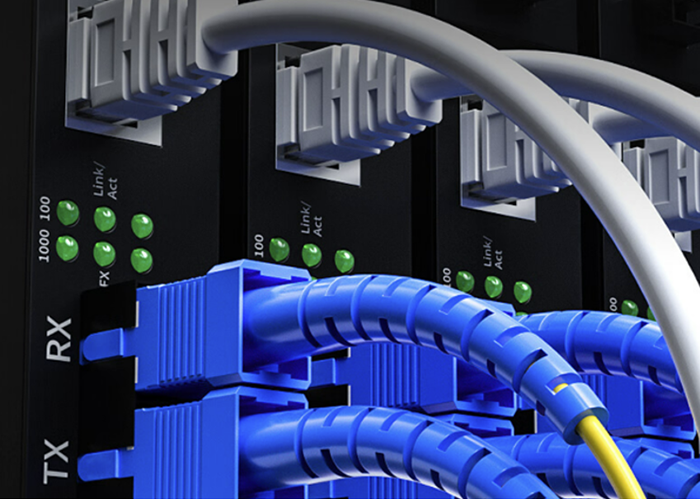
First, ensure that your optical cable is securely connected to both the output device (like a TV or gaming console) and the input device (such as a soundbar or receiver). A loose connection is a common cause of issues. You should hear a click when the cable is properly inserted.
2. Inspect the Optical Cable
Examine the optical cable for any signs of damage. Optical cables are sensitive; even a slight bend can impair performance. Ensure there are no kinks or visible breaks. If the cable appears damaged, replacing it with a new one might resolve your issues.
3. Verify Device Settings
Most devices require you to enable the optical output manually. Check the audio settings on your output device and ensure that the optical output is selected as the audio source. This can usually be found in the audio or sound settings menu.
4. Look for the Red Light
A simple way to test if the optical output is functioning is to look for a red light at the end of the cable when it’s connected to a powered-on device. This light indicates that the signal is being transmitted through the cable. If there is no light, the output might be disabled or the cable might be faulty.
Using a Test Signal
To further verify if the optical output is working, you can use a test signal. Many devices offer a test tone or audio signal that you can play through the optical output. If the connected audio device receives the signal and you can hear it, the optical output is functioning correctly.
5. Switch Between Inputs
Sometimes, switching between different inputs on your audio receiver or soundbar can help determine if the issue lies with the optical output or the input device. Try using a different input method (like HDMI or RCA) and then switch back to the optical input to see if it resolves the issue.
Conclusion of Part 1
By following these steps, you should be able to determine if your optical output is functioning properly. Physical checks, inspecting the cable, verifying settings, and using test signals are straightforward ways to troubleshoot common issues. In the next part, we will delve deeper into advanced troubleshooting techniques and explore solutions for specific problems you might encounter with your optical output.
In the first part, we covered the basic steps to ensure your optical output is working. Now, we will dive into more advanced troubleshooting techniques and solutions for specific problems. By the end of this guide, you’ll be equipped with all the knowledge you need to ensure your audio system delivers the best possible sound quality.
Advanced Troubleshooting Techniques
6. Firmware Updates
Outdated firmware can sometimes cause compatibility issues with audio outputs. Check if your output device (such as a TV or game console) and input device (like a soundbar or receiver) have available firmware updates. Manufacturers often release updates to fix bugs and improve performance. Ensure both devices are running the latest firmware.
7. Check Compatibility
Not all devices support every audio format over optical output. Ensure that your output device is set to a compatible audio format that your receiver or soundbar can decode. Common formats include PCM, Dolby Digital, and DTS. You can usually change the audio format in the device’s sound settings menu.
8. Reset Devices
Sometimes, simply resetting your devices can resolve connection issues. Turn off both the output and input devices, unplug them from the power source, wait for a minute, and then power them back on. This can clear temporary glitches that might be affecting the optical output.
Specific Problem Solutions
No Sound from Optical Output
If there’s no sound coming from your optical output, even after verifying the connection and settings, consider the following steps:
Try a Different Cable: Even if your cable looks fine, it might be faulty. Using a different optical cable can help determine if the cable is the issue.
Check Volume Levels: Ensure that the volume is turned up on both the output device and the input device. Sometimes, the issue might simply be that the volume is too low to hear.
Intermittent Sound Issues
If you experience sound cutting in and out, the following might help:
- Secure Connections: Double-check that all connections are secure and that the cable is not loose.
- Reduce Interference: Keep the optical cable away from other electronic devices that might cause interference.
- Replace the Cable: Optical cables can degrade over time. If yours is old, replacing it might resolve intermittent issues.
Testing with Different Devices
To further pinpoint the issue, try connecting the optical cable to a different output device. If the sound works with another device, the problem likely lies with the original output device. Conversely, if the issue persists with a different device, the problem might be with the cable or the input device.
Professional Help
If you’ve tried all the above steps and still face issues, it might be time to seek professional help. Audio equipment specialists can provide in-depth diagnostics and repairs that go beyond basic troubleshooting.
Conclusion
Ensuring your optical output is working properly involves a combination of basic and advanced troubleshooting techniques. From checking physical connections and settings to updating firmware and testing different devices, these steps can help you maintain optimal audio performance. If all else fails, professional assistance can ensure your audio setup delivers the high-quality sound you expect.
By following this comprehensive guide, you can confidently troubleshoot and verify your optical output’s functionality, ensuring an excellent audio experience for all your entertainment needs.
Related Article:
SFP-CWGE27-80C 1.25G CWDM SFP 1270nm 80km LC SMF DDM Transceiver Module
TRENDnet TEG-MGBS10 Compatible 1000Base LX SFP 1310nm 10km LC SMF DDM Transceiver Module
SFP-GE35-2BX20 1000Base 2 Channels BX BIDI CSFP TX1310nm-RX1550nm 20km LC SMF DDM Transceiver Module
SFP-GE55-ZX 1000Base SFP ZX 1550nm 80km LC SMF DDM Transceiver Module
SFP-DWGE17-120C 1.25G DWDM SFP C17 100GHz 1563.86nm 120km LC SMF DDM Transceiver Module